> ## Documentation Index
> Fetch the complete documentation index at: https://docs.nonce.app/llms.txt
> Use this file to discover all available pages before exploring further.
# Filters
> Locate problem miners by status, temperature, hashrate, and combined conditions
The [Miners](https://nonce.app/demo/farms/a28185a3-791f-4057-a318-0b4c156b00d8/miners) page provides a left filter panel with status tags, performance tags, and range filters that let you quickly locate problem miners. You can filter by a single condition — such as a status, a temperature threshold, or a hashrate range — or combine multiple conditions to narrow results further. The sections below cover each filter type in detail.
## Overheated
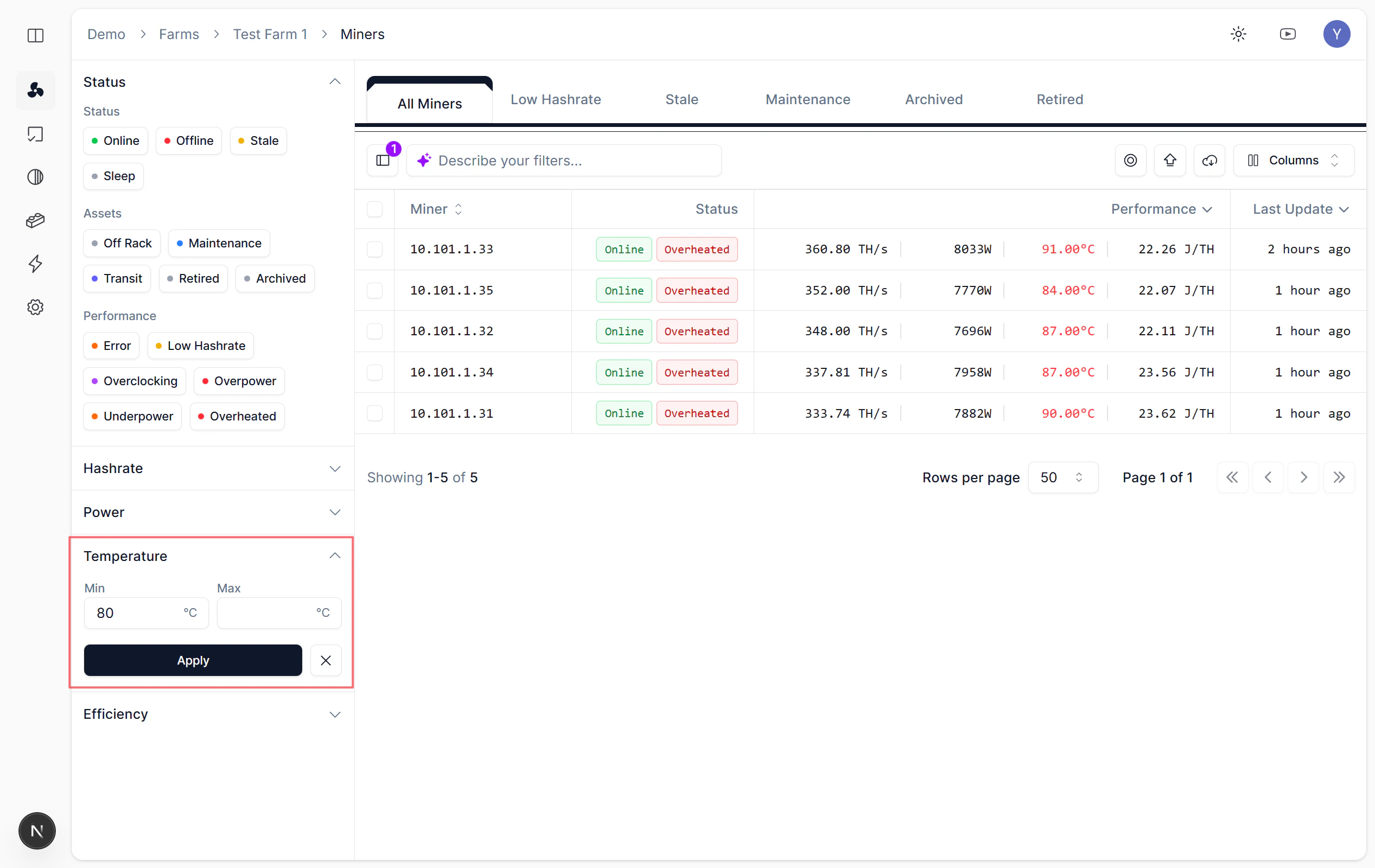
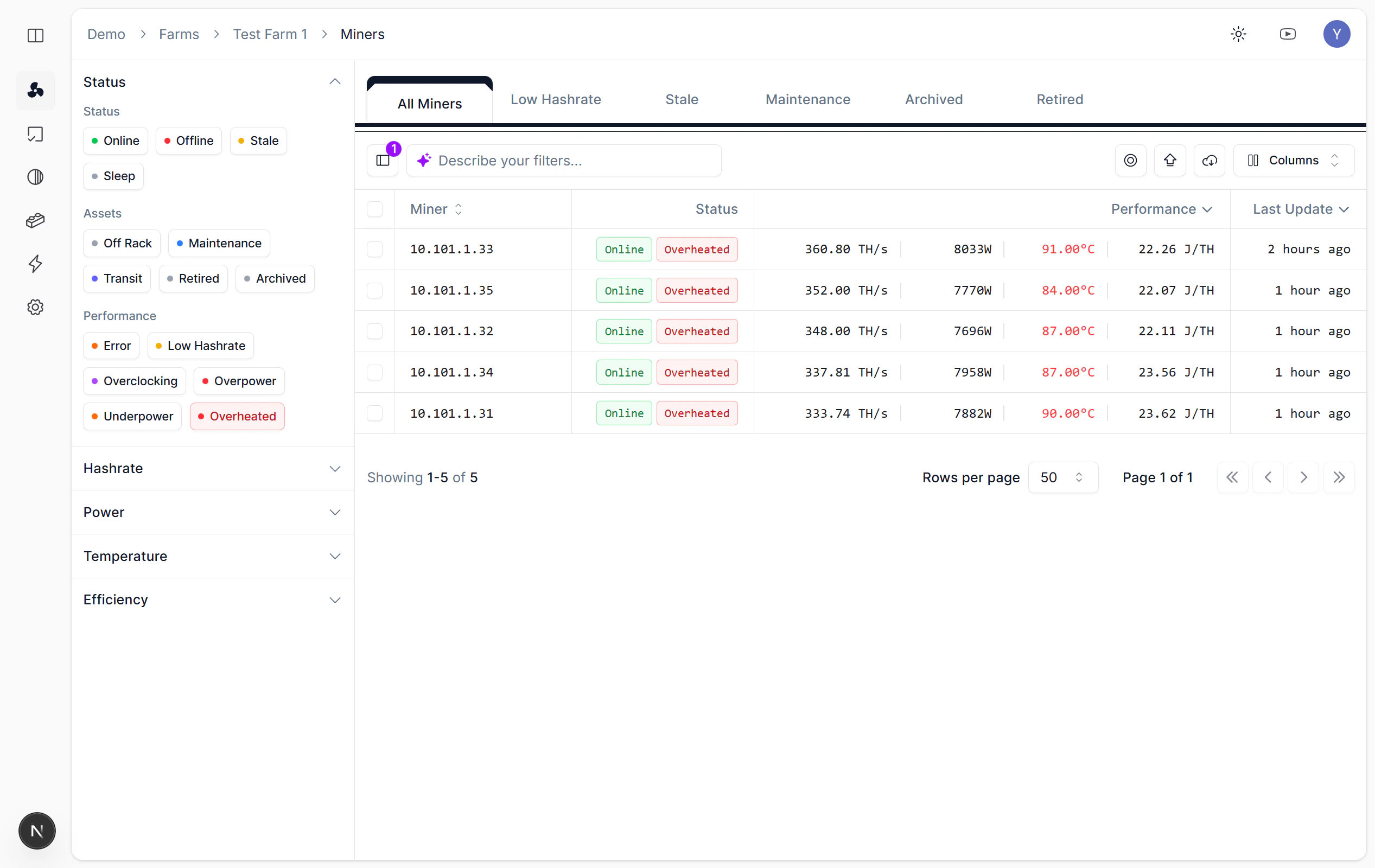
On the Miners page, use the left filter panel to quickly locate overheated miners.
### Steps
1. **Method 1**: Open the left filter panel, expand the **Temperature** section, and set the Min threshold (e.g., 80°C) to filter overheated miners.
2. **Method 2**: In the **Performance** section of the filter panel, click the **Overheated** tag to locate overheated miners instantly.
 ## Zero Hashrate
### Overview
A miner shows **Zero Hashrate** when it reports no hashing output at all, even though the Nonce Agent can still reach it. This differs from Offline status, where the Agent loses contact with the miner entirely. Common causes include mining software crashes, pool connection failures, and hash board hardware faults.
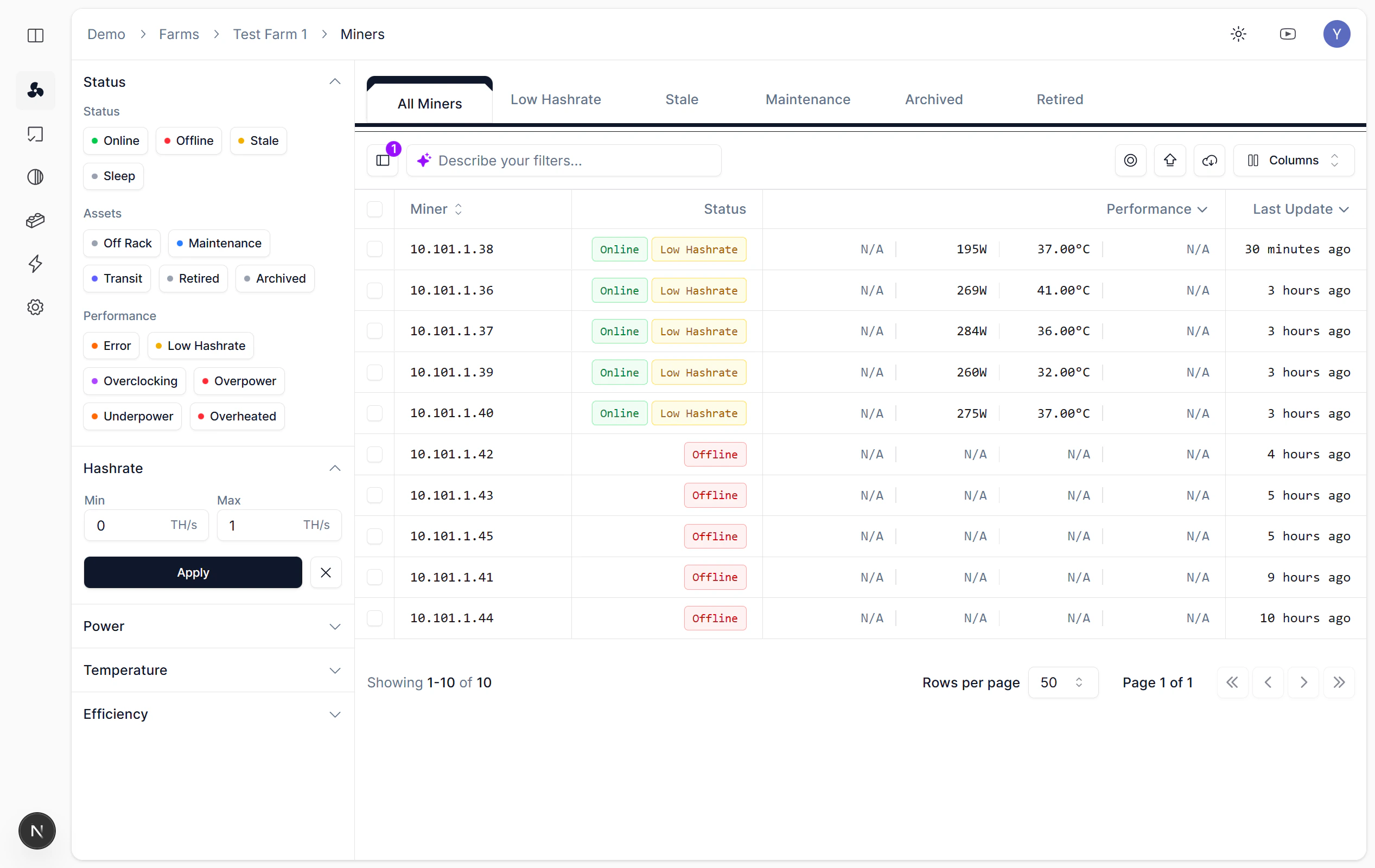
On the Miners page, use the Hashrate panel to quickly locate zero hashrate miners.
### Steps
Set Min: 0 and Max: 1 in the Hashrate panel.
## Zero Hashrate
### Overview
A miner shows **Zero Hashrate** when it reports no hashing output at all, even though the Nonce Agent can still reach it. This differs from Offline status, where the Agent loses contact with the miner entirely. Common causes include mining software crashes, pool connection failures, and hash board hardware faults.
On the Miners page, use the Hashrate panel to quickly locate zero hashrate miners.
### Steps
Set Min: 0 and Max: 1 in the Hashrate panel.
 ### What to Do Next
After locating zero-hashrate miners, check pool configuration and network connectivity on the miner detail page. A reboot often resolves software-level crashes. If the miner remains at zero hashrate after rebooting, inspect hash board status for hardware faults that require on-site attention.
## Low Hashrate
### Overview
A miner reports **Low Hashrate** when its output falls below the expected rate for its model. Common causes include overheating, aging hash boards, firmware bugs, and unstable power supply. Identifying these miners early prevents prolonged revenue loss.
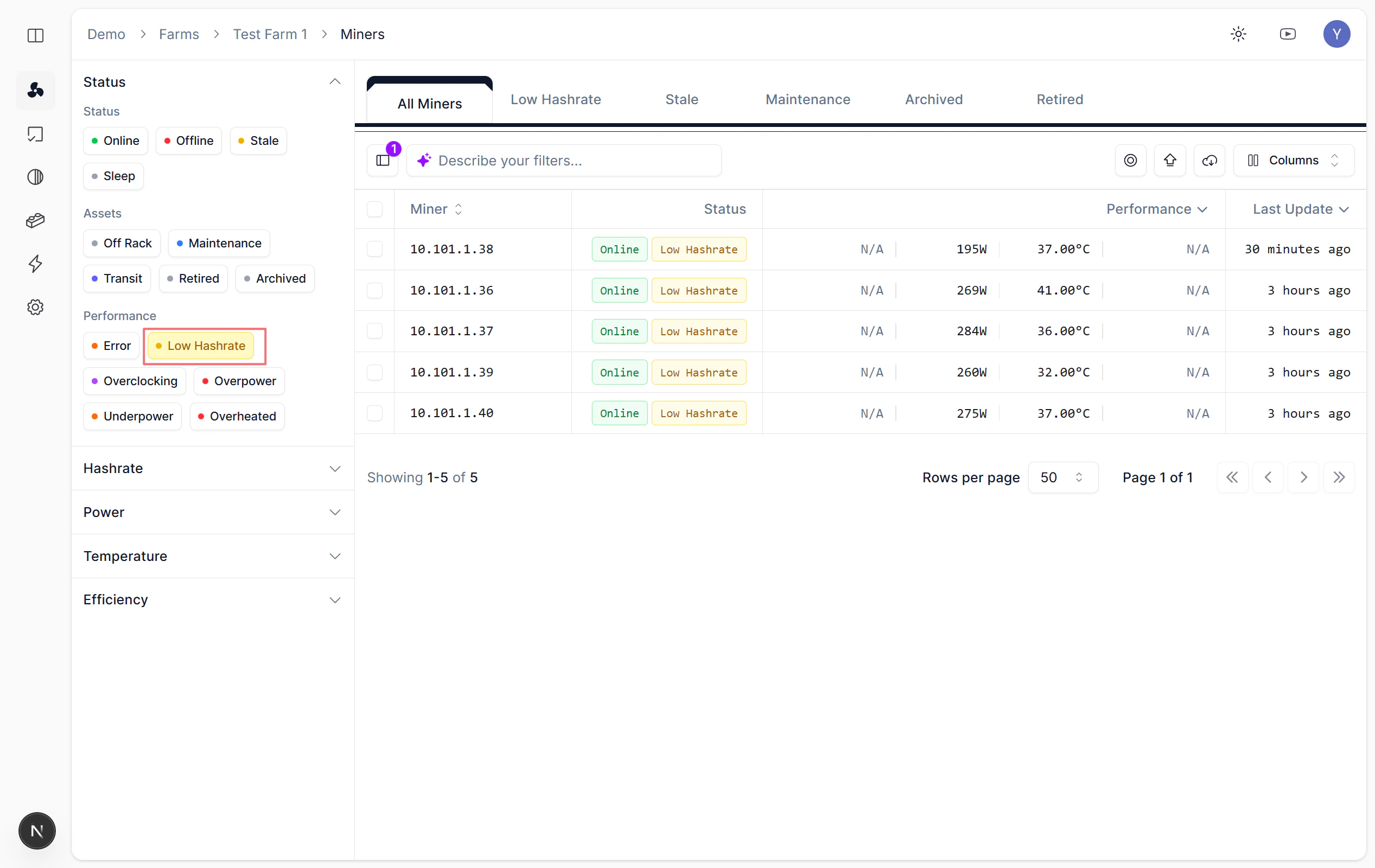
On the Miners page, use the Performance tags to quickly locate low hashrate miners.
### Steps
Select the **Low Hashrate** status tag in the Performance section.
### What to Do Next
After locating zero-hashrate miners, check pool configuration and network connectivity on the miner detail page. A reboot often resolves software-level crashes. If the miner remains at zero hashrate after rebooting, inspect hash board status for hardware faults that require on-site attention.
## Low Hashrate
### Overview
A miner reports **Low Hashrate** when its output falls below the expected rate for its model. Common causes include overheating, aging hash boards, firmware bugs, and unstable power supply. Identifying these miners early prevents prolonged revenue loss.
On the Miners page, use the Performance tags to quickly locate low hashrate miners.
### Steps
Select the **Low Hashrate** status tag in the Performance section.
 ### What to Do Next
After locating low-hashrate miners, check each unit's temperature, fan speed, and hash board status on the miner detail page. Reboot the miner if the drop appeared suddenly. For persistent low hashrate, inspect the physical unit for dust buildup, loose cables, or failing hash boards.
## Offline
### Overview
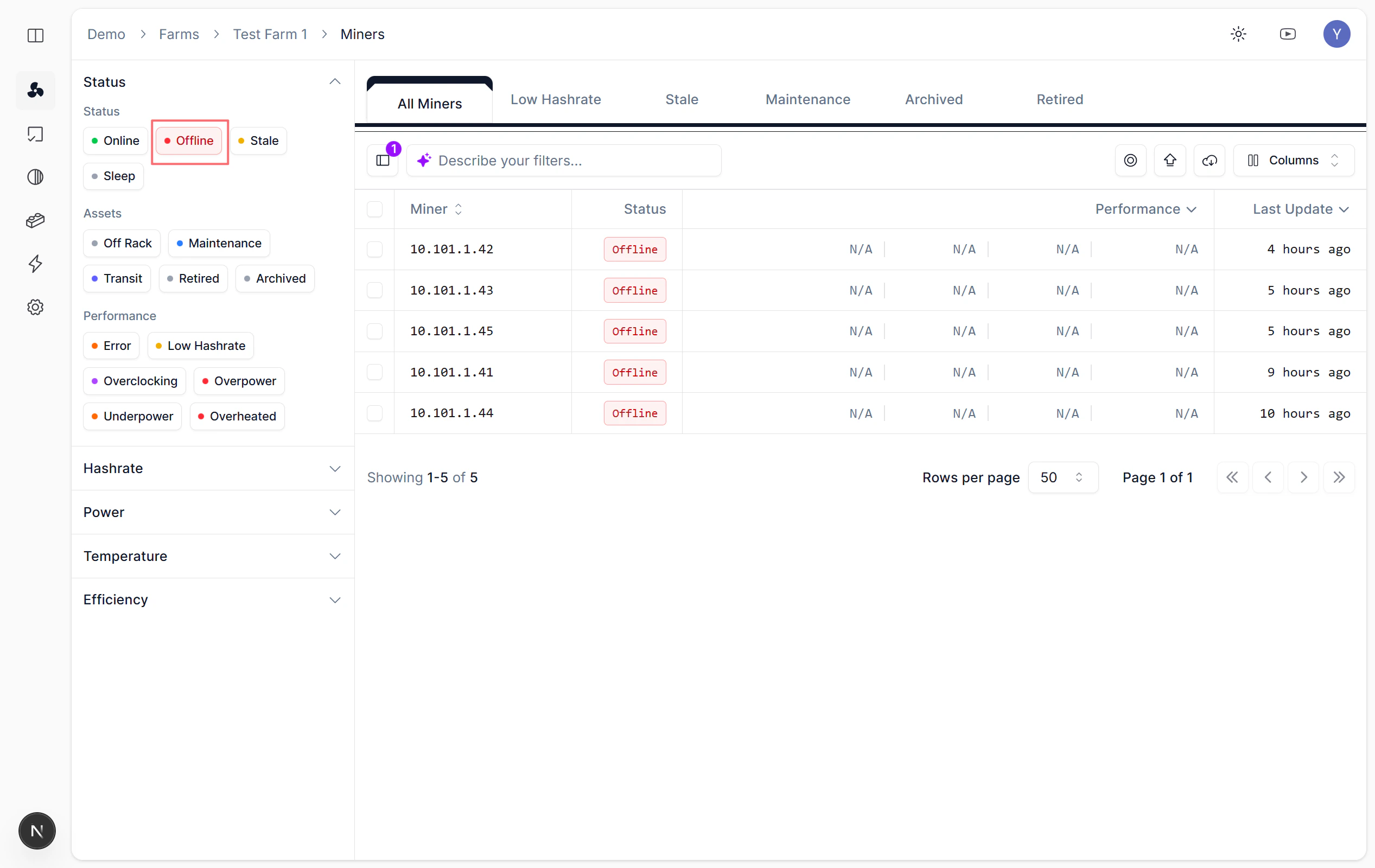
A miner is **Offline** when the Nonce Agent cannot reach it over the network. This typically indicates a network disruption, power outage, or complete hardware failure. Offline miners produce no hashrate and generate no telemetry until connectivity is restored.
On the Miners page, use the Status panel to quickly locate offline miners.
### Steps
Select **Offline** in the Status panel.
### What to Do Next
After locating low-hashrate miners, check each unit's temperature, fan speed, and hash board status on the miner detail page. Reboot the miner if the drop appeared suddenly. For persistent low hashrate, inspect the physical unit for dust buildup, loose cables, or failing hash boards.
## Offline
### Overview
A miner is **Offline** when the Nonce Agent cannot reach it over the network. This typically indicates a network disruption, power outage, or complete hardware failure. Offline miners produce no hashrate and generate no telemetry until connectivity is restored.
On the Miners page, use the Status panel to quickly locate offline miners.
### Steps
Select **Offline** in the Status panel.
 ### What to Do Next
After identifying offline miners, verify network connectivity and power supply at the physical location. Check whether nearby miners in the same rack or switch are also offline, which may point to a shared infrastructure issue. Once the miner is back online, the Agent resumes data collection automatically.
## Fan Abnormal
**TODO**: Fan abnormality criteria and query methods are still in development. Stay tuned for updates.
## Multiple Filters
### Overview
Combining multiple filter conditions narrows results to miners that match all selected criteria at once. This is useful for complex troubleshooting scenarios where a single filter returns too many results.
For example, filter by the **Overheat** performance tag and a specific **Rack** to find all overheating miners in one physical location. Or combine a hashrate range with a **Model** filter to isolate underperforming units of a particular hardware generation.
### Usage
On the Miners page, combine multiple filter conditions in the left panel to locate problem miners.
### What to Do Next
After identifying offline miners, verify network connectivity and power supply at the physical location. Check whether nearby miners in the same rack or switch are also offline, which may point to a shared infrastructure issue. Once the miner is back online, the Agent resumes data collection automatically.
## Fan Abnormal
**TODO**: Fan abnormality criteria and query methods are still in development. Stay tuned for updates.
## Multiple Filters
### Overview
Combining multiple filter conditions narrows results to miners that match all selected criteria at once. This is useful for complex troubleshooting scenarios where a single filter returns too many results.
For example, filter by the **Overheat** performance tag and a specific **Rack** to find all overheating miners in one physical location. Or combine a hashrate range with a **Model** filter to isolate underperforming units of a particular hardware generation.
### Usage
On the Miners page, combine multiple filter conditions in the left panel to locate problem miners.