> ## Documentation Index
> Fetch the complete documentation index at: https://docs.nonce.app/llms.txt
> Use this file to discover all available pages before exploring further.
# Install Nonce Agent
> Install Nonce Agent on a Linux host and verify connectivity before miner discovery
Use this guide while setting up a farm.
Before installation, review [Agent Hardware Requirements](/user-guide/agent-hardware-requirements).
## 1. Create an Agent Setup Task
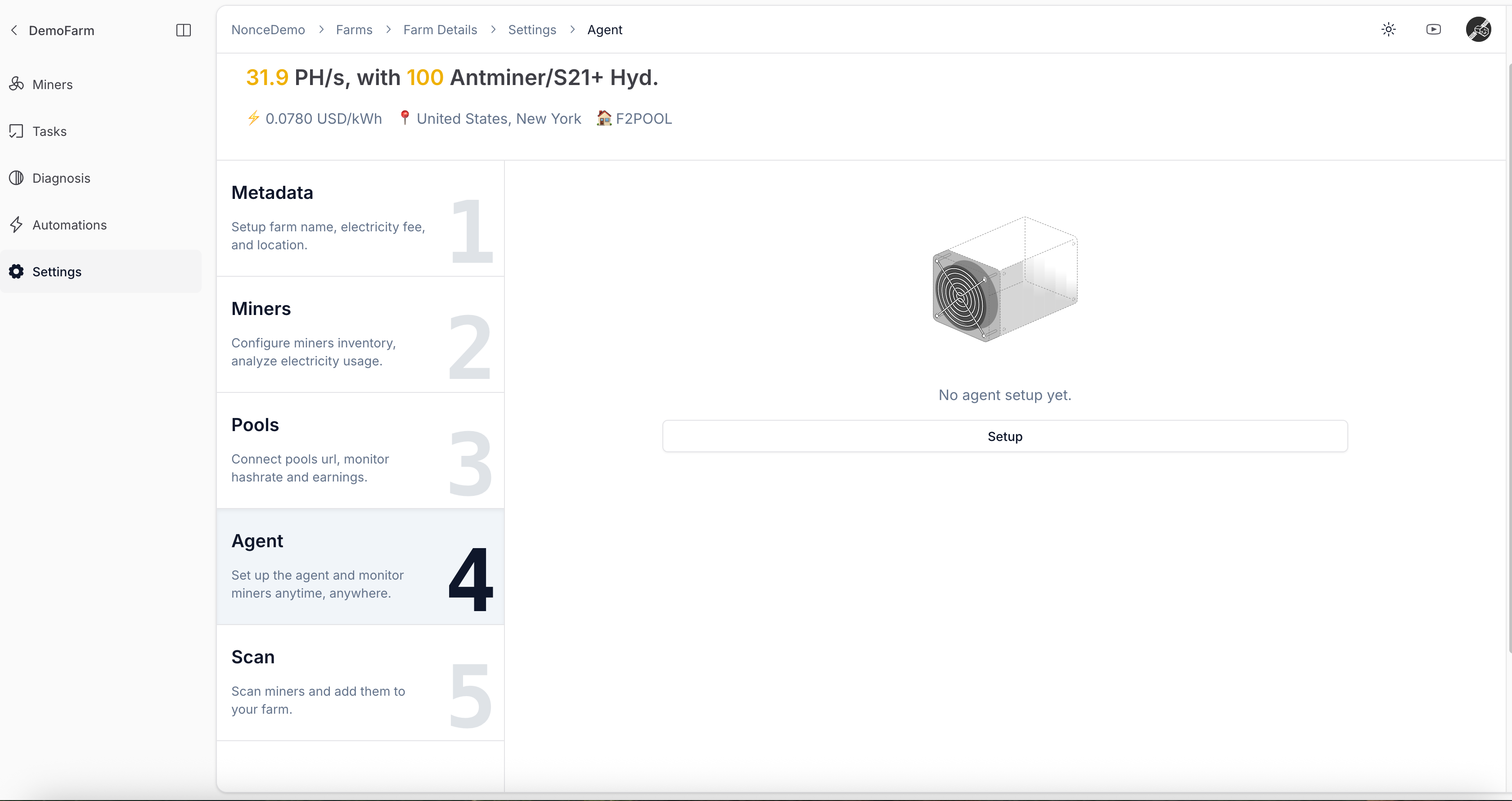
1. In the farm setup wizard, open the **Agent** tab and click **Setup**.
2. If no Agent exists yet, register a new Agent first.
 ## 2. Run the Installation Command
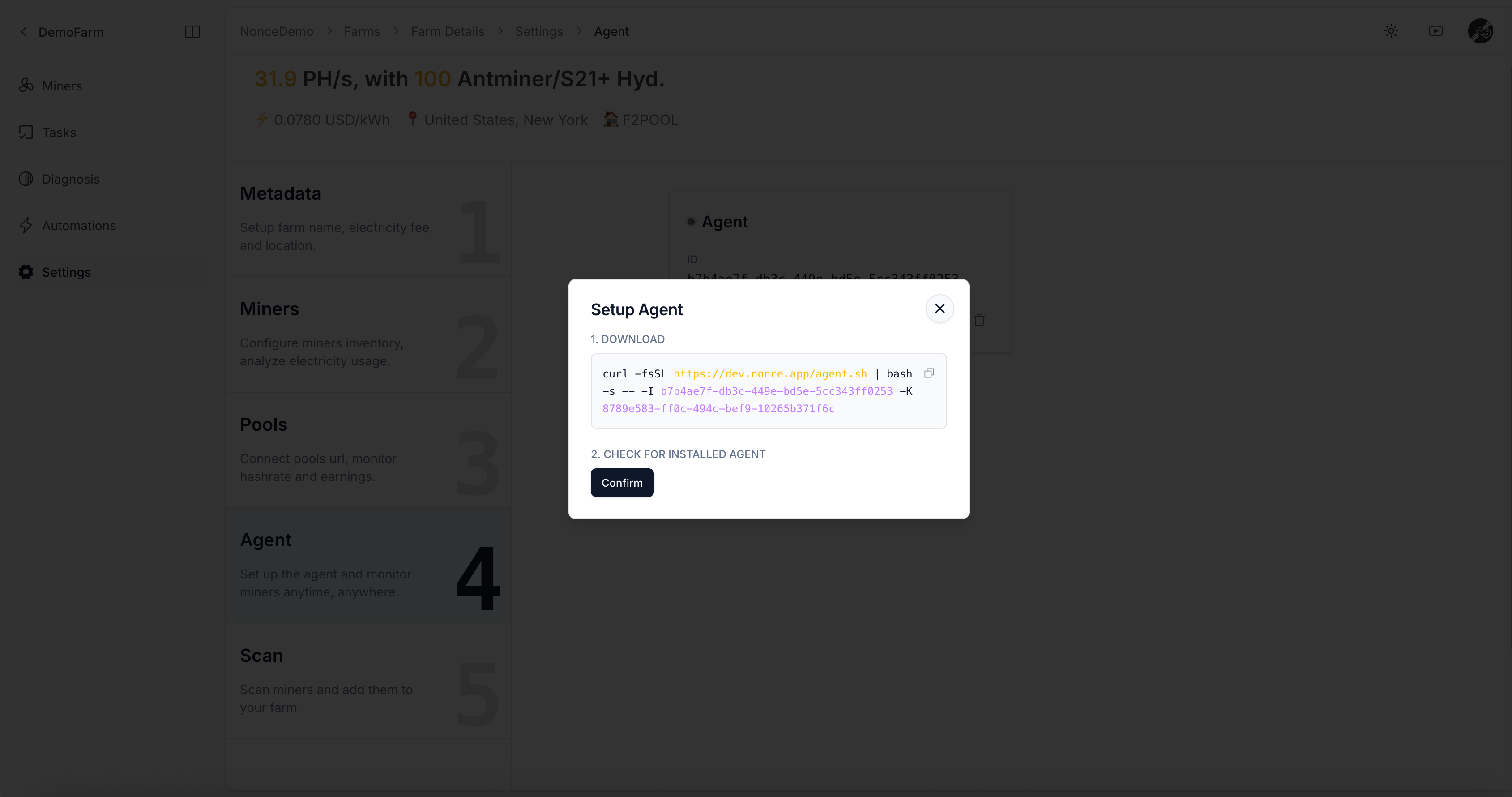
1. Copy the generated shell command.
2. Run it on a server or PC that can access your miners over the network.
## 2. Run the Installation Command
1. Copy the generated shell command.
2. Run it on a server or PC that can access your miners over the network.
 Currently, Agent only supports Linux-based installations (e.g., Ubuntu, Debian, CentOS).
If your miner password is not the default, read [What if my miner password has been changed from the default?](/user-guide/faq#custom-miner-password) before continuing.
## 3. Confirm and Verify Online Status
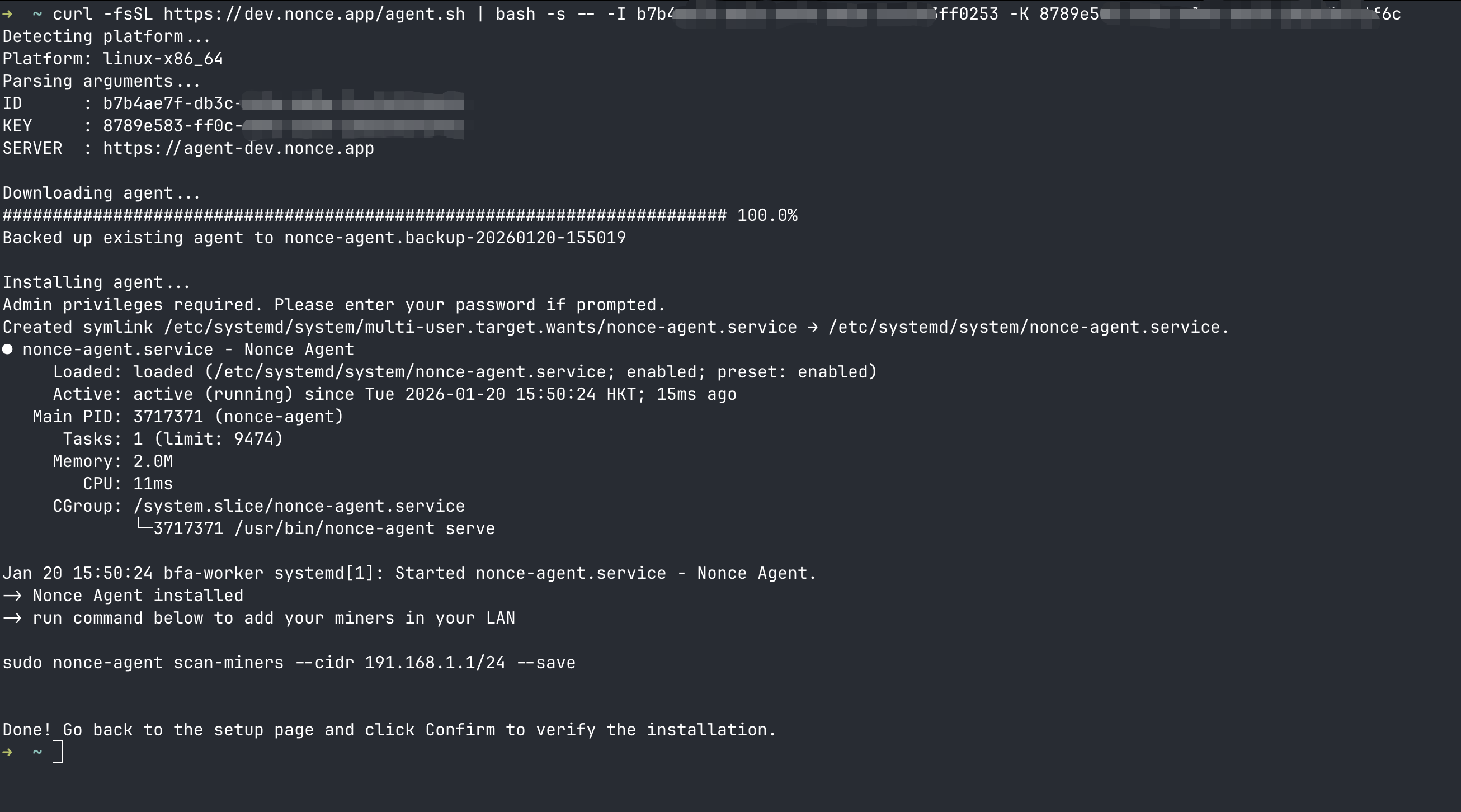
1. After the command finishes successfully, return to the wizard and click **confirm**.
2. Wait a few minutes for Agent to report version, uptime, and connection status.
Currently, Agent only supports Linux-based installations (e.g., Ubuntu, Debian, CentOS).
If your miner password is not the default, read [What if my miner password has been changed from the default?](/user-guide/faq#custom-miner-password) before continuing.
## 3. Confirm and Verify Online Status
1. After the command finishes successfully, return to the wizard and click **confirm**.
2. Wait a few minutes for Agent to report version, uptime, and connection status.
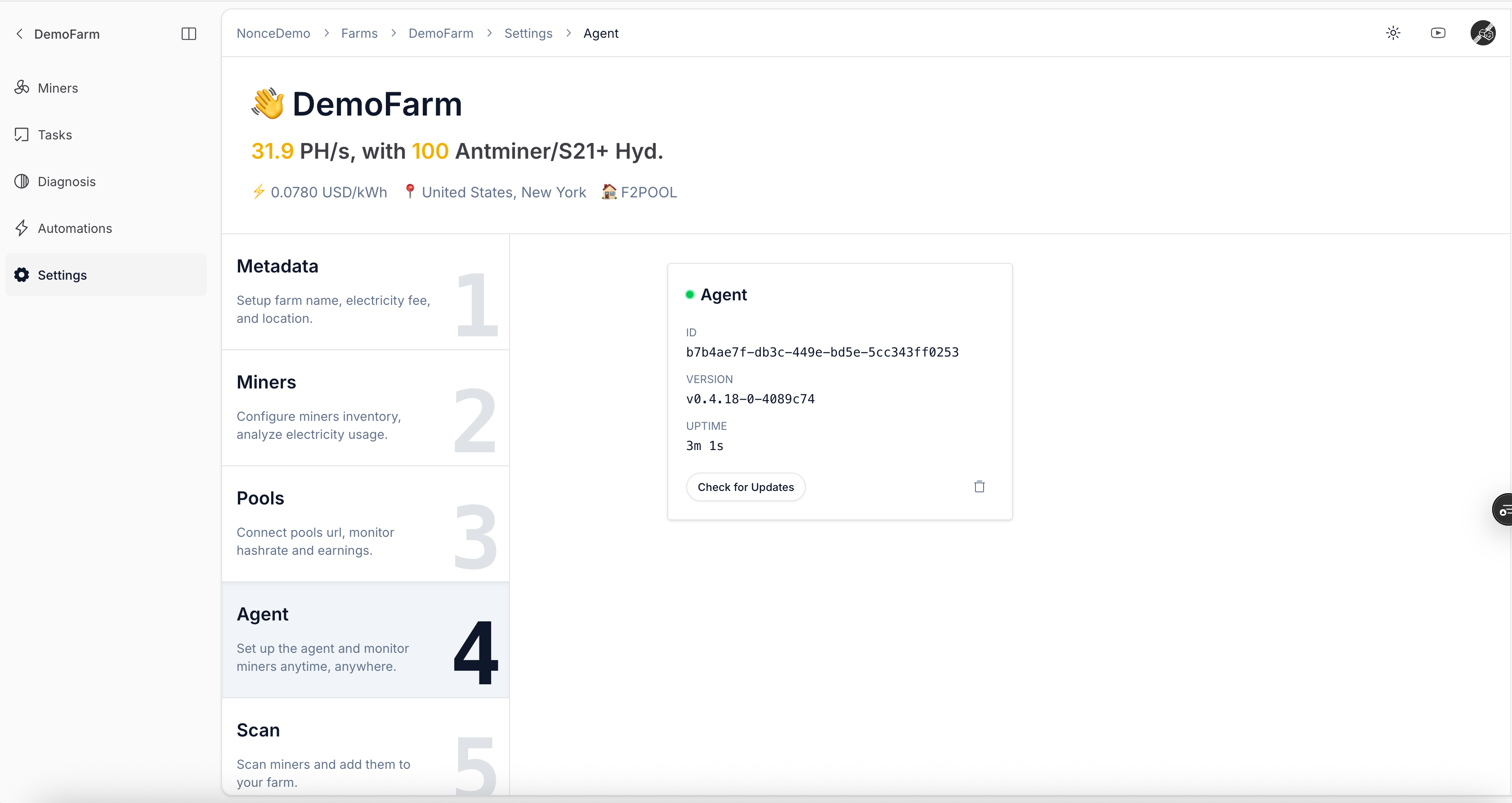 When Agent is online, continue to [Scan Network to Discover Miners](/user-guide/onboarding/create-a-farm-scan-network-to-discover-miners), then proceed to [View Farm Overview](/user-guide/onboarding/view-farm-overview).